How to Plan Instagram Stories with Gridley
In this guide
- Plan single Stories or Story Groups with editable names
- Preview Stories with an Instagram-like player, including UI and timer animation
- Schedule dates, get reminders, and publish from Gridley via the official Instagram API
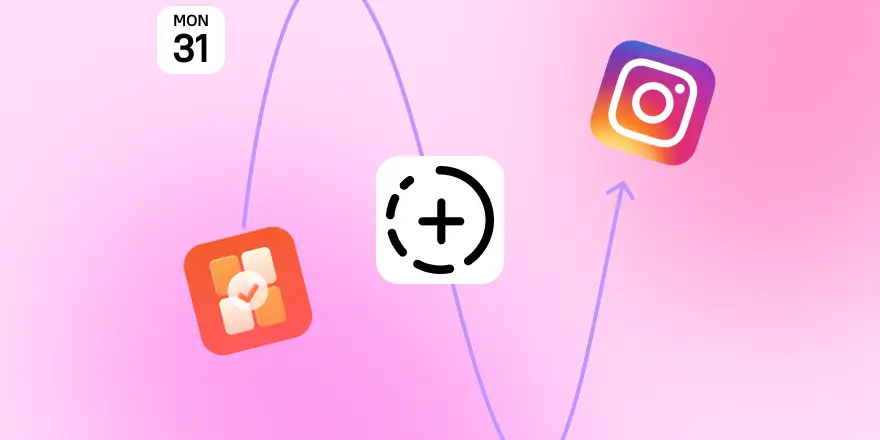
Stories move fast, but your planning shouldn't. With Gridley, you can plan single Stories or create Story Groups, schedule publish dates, preview how everything will look in Instagram, get reminders, and publish directly from the app if your Instagram account is connected.
Contents
Why plan Stories in advance
Stories feel spontaneous, but consistent accounts rely on structure. Planning helps you:
- post regularly without stress
- tell a clearer story across multiple frames
- keep your messaging balanced (value, personality, promotion)
Two ways to plan Stories in Gridley
Gridley supports two workflows. Pick the one that matches your style, or mix both.
Option 1: Single Stories (photo or video)
Use single Stories when you want maximum flexibility:
- a one-off update
- a quick behind-the-scenes clip
- a reaction or repost
- a simple call to action
Each Story can be a photo or a video and can have its own scheduled publish date.
Option 2: Story Groups (a named stack)
Story Groups are designed for sequences. A group:
- contains multiple individual Stories (photo or video)
- can have a custom name for clarity
- lets you rename the group anytime
This is ideal for:
- launch sequences (tease, explain, CTA)
- tutorials (step 1 to step 5)
- event coverage (arrival, highlights, recap)
- sales flows (problem, solution, proof, offer)
Preview Stories like Instagram before you publish
Preview is where planning becomes confident. Gridley includes a Story preview that shows how your Stories will look in Instagram.
How to open preview
Tap the eye icon in the top navigation bar.
Preview for a single Story
You can quickly check:
- cropping
- readability
- text placement
- pacing (if it is a video)
Preview for a Story Group (the full stack)
When you preview a group, Gridley plays the entire Story stack in an Instagram-like viewer:
- the timer bar animation at the top
- Instagram-style interface elements
- frame-to-frame progression that feels nearly 1:1
This helps you spot issues early:
- a frame that feels too long or too short
- a slide that breaks the narrative
- a CTA appearing too early or too late
- inconsistent design between frames
Add placeholders, drafts, and real media
Gridley is flexible when content is not ready yet.
Placeholders
Placeholders help you plan structure first. Use them for:
- “poll about X”
- “FAQ slide”
- “testimonial”
- “behind the scenes”
- “countdown”
Then replace them with media later.
Drafts across formats
You can also create drafts for:
- posts (including captions)
- Reels
- Stories
This keeps your content calendar realistic, not just visual.
Schedule publish dates and rely on reminders
Any content in Gridley can have a scheduled publish date.
Why scheduling matters
- your week stays consistent, even when busy
- you can plan around launches and time zones
- your Stories support your feed posts on the right day
Reminders right on time
Before your scheduled time, Gridley sends a reminder so you do not miss your slot.
Publish from Gridley via the official Instagram API
If you connect your Instagram account via the official Instagram API, you can publish directly from Gridley.
This reduces friction:
- fewer steps from plan to publish
- less context switching between apps
- fewer missed posts
Plan days or weeks ahead (copy-ready structure)
A simple daily pattern
- Monday: weekly plan + behind the scenes
- Tuesday: tip or mini tutorial
- Wednesday: Q&A, polls, prompts
- Thursday: social proof (reviews, results)
- Friday: recap + CTA
A weekly pattern for launches
- Week 1: tease + education
- Week 2: product focus + FAQ
- Week 3: community + UGC
- Week 4: offer + urgency
Start with placeholders, then fill in media.
A 15-minute weekly workflow
1) Build your Story plan
Create single Stories or Story Groups for the week. Name groups clearly.
2) Preview the flow
Use the eye icon to preview. For groups, watch the full stack.
3) Add publish dates
Assign publish dates to Stories, posts, and Reels to lock your rhythm.
4) Replace placeholders with final media
Swap in photos/videos as you create them.
5) Publish consistently
Use reminders, and publish directly from Gridley if your account is connected.
Common mistakes (and quick fixes)
Stories feel random
Fix: use Story Groups for sequences and give each group a single goal.
A Story looks fine alone but awkward in the stack
Fix: preview the full group and adjust order, pacing, or slide content.
Important text gets cut or feels cramped
Fix: preview before posting and increase padding around text.
You miss posting time
Fix: set publish dates and rely on reminders.
Summary
Gridley gives you two clean ways to plan Stories: single photo/video Stories or named Story Groups. You can preview them in an Instagram-like player (including UI and timer animation), schedule publish dates with reminders, and publish directly from Gridley via the official Instagram API.
Try planning one Story Group for your next week and preview the full stack before you publish.
Ready to plan your next posts?
Start free and make your grid look intentional.